Set up offline payment methods (bank transfer, cash, cheque)
Updated 13 October 2026
Payment methods are the offline ways a guest can pay you, such as a bank transfer, cash or a cheque. When a quote uses Offline Payment, the guest sees the method's instructions instead of a card payment button.
Steps
Go to Settings → Data Management → Payment Methods.
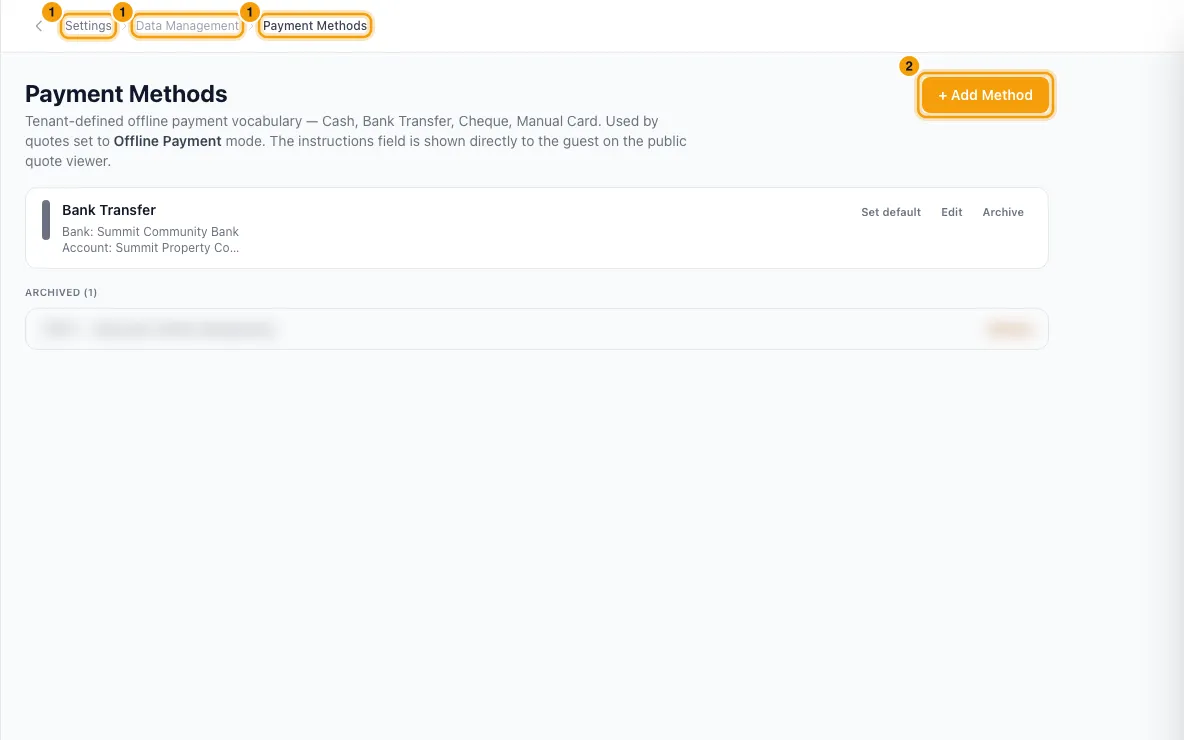
Click + Add Method.
Type a Name, for example "Bank Transfer (Emirates NBD)".
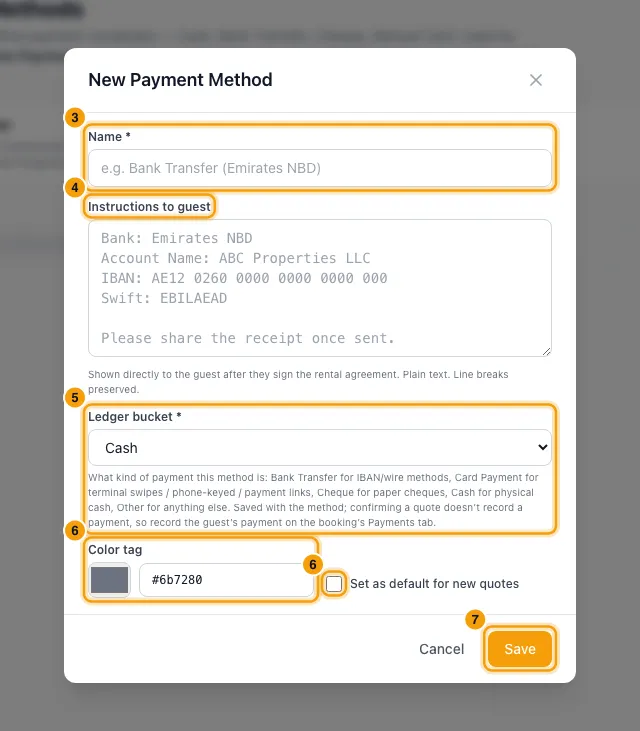
Under Instructions to guest, type what the guest needs, for example your bank name, account name, IBAN and SWIFT. Line breaks are kept.
Pick the Ledger bucket: Cash, Bank Transfer, Card Payment, Cheque or Other.
Optionally pick a Color tag, and tick Set as default for new quotes.
Click Save.
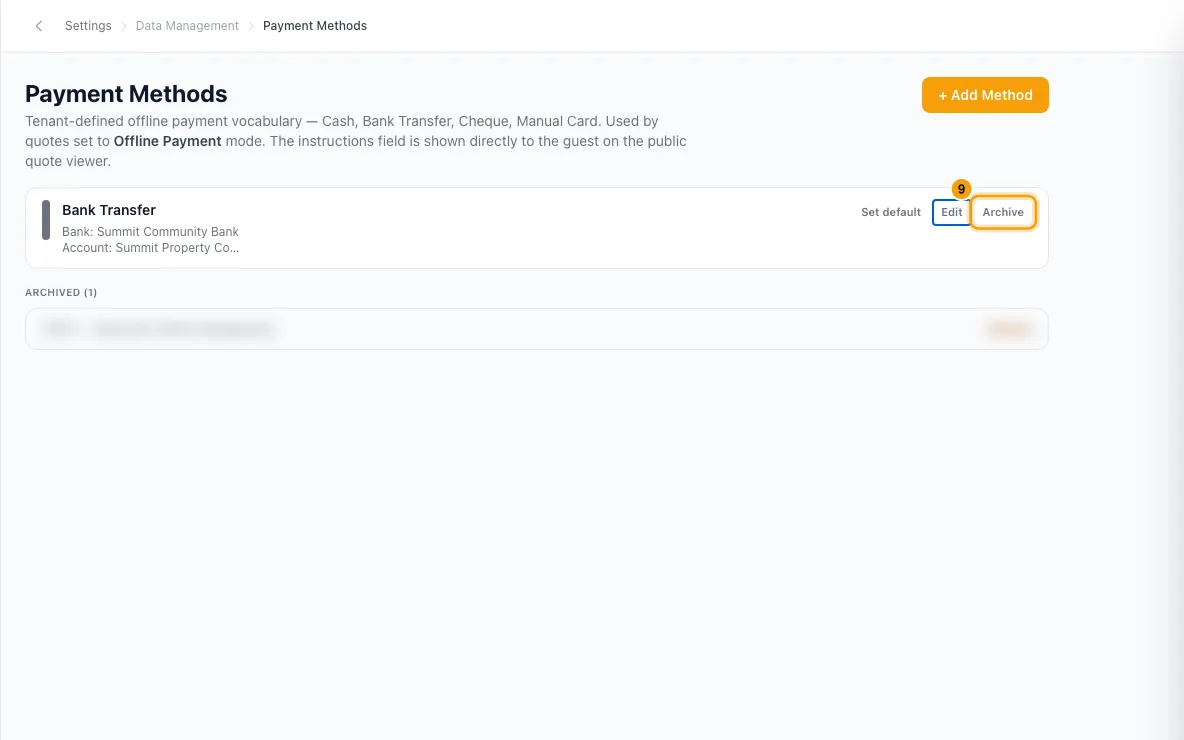
To change a method later, click Edit. To make another one the default, click Set default on its row.
To stop offering a method, click Archive, then Archive to confirm. To bring it back, click Restore under Archived.
Good to know
- Where these methods are used:
- In the quote wizard, under Payment Mode, when you pick Offline Payment. Choose the method under Payment Method. The default method is picked for you on a new quote.
- On the guest's quote page. The guest sees the method's name and instructions, and clicks Confirm Booking. When the money arrives, open the quote and click Confirm Booking to create the booking. That creates the booking only: record the guest's payment on the booking's Payments tab (see "Record a guest payment received offline").
- On your Rentibly website. Open your website from Settings → Integrations → Channels & OTAs, then its Payment Methods tab. There you choose which methods website quotes accept, for the whole site or per property. If both online and offline methods are accepted, the guest can choose on their quote.
- Ledger bucket says which kind of payment this method counts as, for example Card Payment for a card terminal or a payment link. Nothing in the Hub uses it to record a payment today: Confirm Booking on a quote creates the booking only, and you record the payment on the booking's Payments tab.
- A quote keeps a copy of the method's name and instructions from when the quote was made. Editing or archiving the method later doesn't change quotes already made.
- Archive only hides the method from new quotes. Methods are never deleted.
- Only one method can be the default. Picking a new default clears the old one.
- If you have no methods, the quote wizard shows "No payment methods configured" when you pick Offline Payment.
- These methods are for guests paying you. Online card payments use your payment processor instead.
- You need the Settings permission set to Access to add or change methods. Everyone in your team can see them when they make a quote.
Rentibly AI can help
- Rentibly AI can't add or change payment methods yet.
Still stuck?
Open Support from your profile menu in Rentibly, or email hello@rentibly.com — we answer fast.