Send email from your own domain
Updated 13 October 2026
Choose who your emails come from. Out of the box, Rentibly sends from a Rentibly-managed address, so you can send straight away. Verify your own domain to send from addresses like reservations@yourcompany.com, then check how your emails are being delivered on the Insights tab.
Steps
Click your name at the bottom of the sidebar, then Settings. Under Communication, open Email. It opens on the Senders tab.
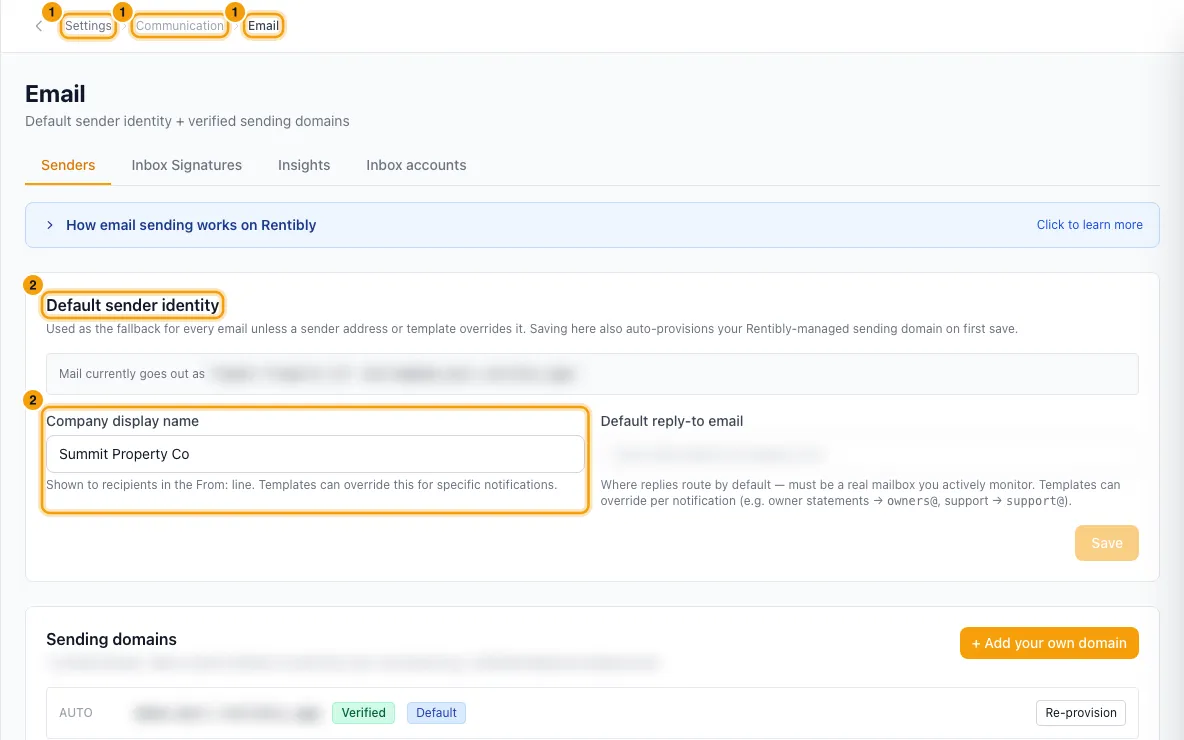
Under Default sender identity, enter the Company display name (the name guests see) and the Default reply-to email (a real mailbox you check). Click Save & provision domain (or Save if your Rentibly-managed domain already exists).
Under Sending domains, click + Add your own domain. Type your domain, for example
acme.com, and click Add domain.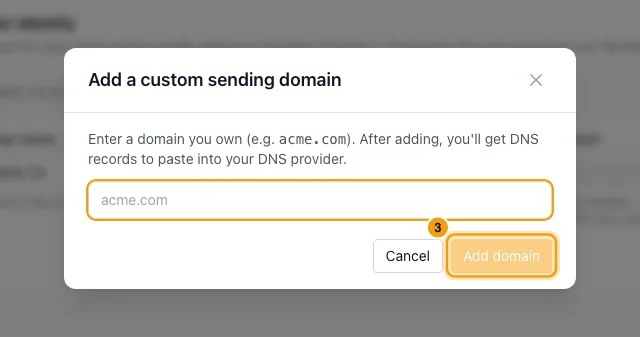
The DNS records window opens. Add each record to your domain's DNS provider: the three DKIM CNAME records and the SPF TXT record. The Return-path records are recommended but optional. Use the Copy buttons.
Wait about 5 minutes, then click Check status next to the domain. Repeat until it shows Verified. To see the records again, click DNS records.
Under Sender addresses, click + Add address. Choose Rentibly delivery, type the part before the @ (for example
reservations) and pick your domain. Optionally add a Display name and Reply-to. Click Add address.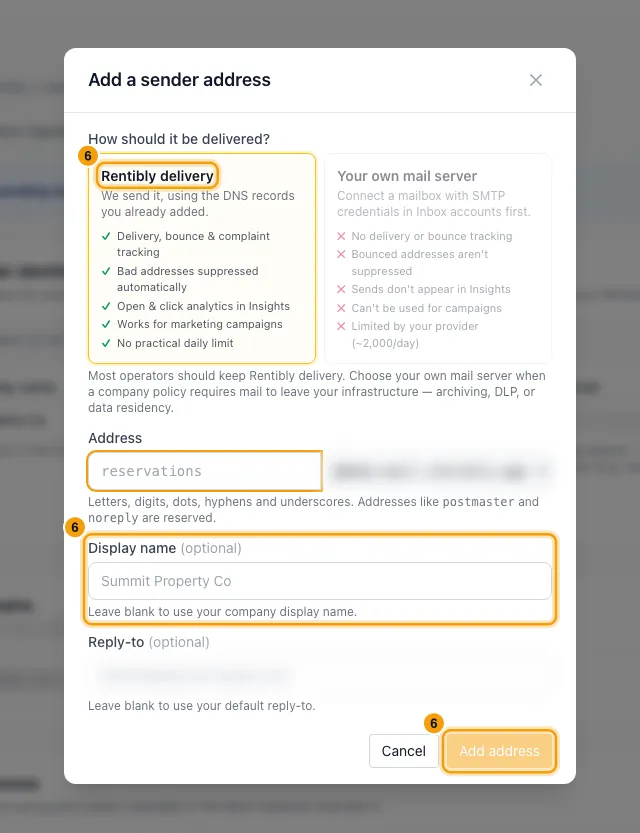
To make an address the one used everywhere, click Set default next to it. To make a verified domain the default, click Set default next to the domain.
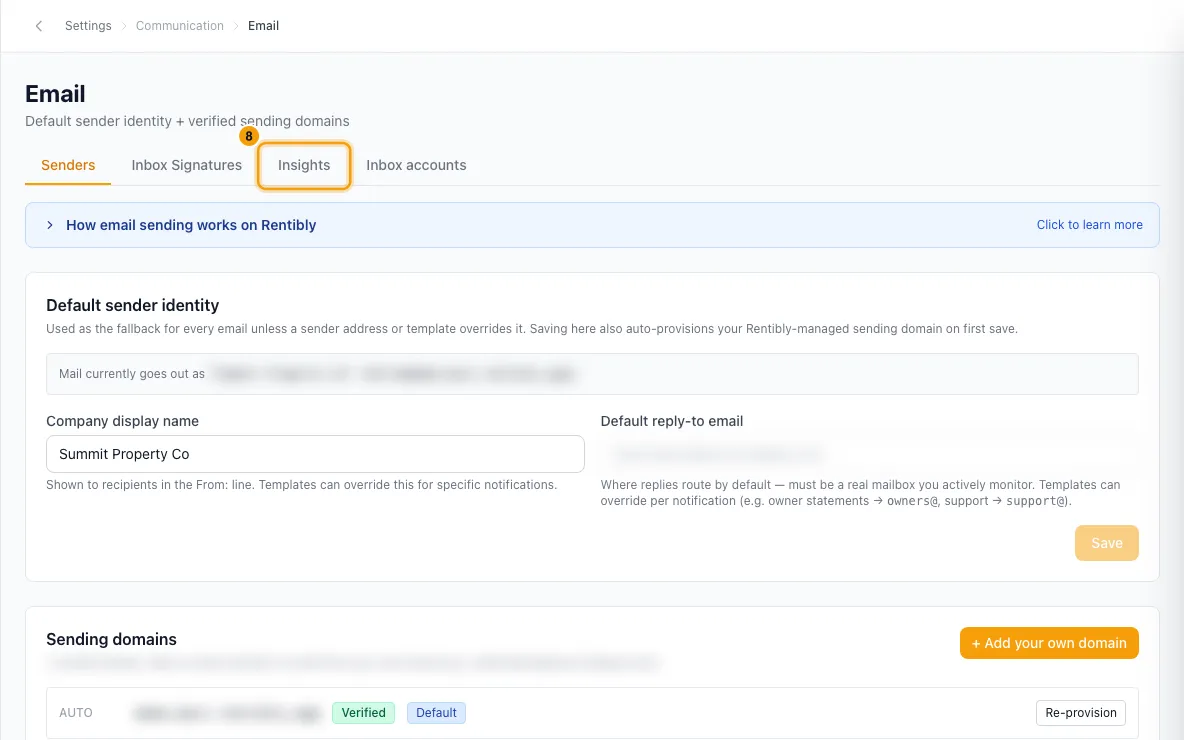
To check delivery, open the Insights tab. Pick 7 days, 30 days or 90 days and read Status, Delivery, Bounce rate and Complaint rate.
To find one email, scroll to Activity Log. Search by subject or recipient, or filter by status, then click the row to see its timeline and body. Click Export audit PDF to download a record of it.
If an address is under Suppression list by mistake (for example a typo that has been fixed), click Restore, then Restore again to confirm.
Good to know
- Before your own domain is verified, mail goes out from your Rentibly-managed subdomain (yourcompany.mail.rentibly.app), set up for you when you first save the sender identity. It verifies by itself, usually within 30–90 seconds.
- Your first verified domain becomes your default sending domain automatically. If you add a second one later, you choose the default with Set default.
- Your own domains are not checked automatically. A Pending custom domain only moves to Verified when you click Check status.
- SPF: if your domain already has an SPF record, add
include:amazonses.comto it instead of creating a second one. - Return-path records are optional. Sending works without them; they remove the "via amazonses.com" note some mail apps show.
- Up to 3 of your own domains by default. + Add your own domain is greyed out once you reach your limit. Remove one to add another.
- Removing a domain deletes it from Rentibly (your DNS records stay with your DNS provider). The confirmation warns that sends from it fail until another domain is the default.
- Re-provision appears only on the Rentibly-managed domain. It rebuilds it; sending pauses for about a minute while it re-verifies.
- Daily DNS check: once a day Rentibly checks each domain's records. If your own domain's records break, your users with the owner or admin role get an email when it breaks, a reminder every 7 days while it stays broken, and an email when it is fixed. A missing return-path alone never triggers an email. The domain row shows a red or amber chip, such as DKIM failing or SPF missing.
- Which address is used: an email template's own sender (Send from in the template), otherwise your default sender address. With no sender addresses at all, mail goes from notifications@ your default verified domain. The box under Default sender identity shows the address mail goes out as right now. In the Inbox, agents can also pick a different sender address when they write an email.
- The first address you add becomes the default. You can't delete the default while you have other addresses; set another one as default first. When you delete an address, templates that used it fall back to your default.
- Address rules: letters, digits, dots, hyphens and underscores. Reserved names such as postmaster, noreply, admin and bounce can't be used. An address can be created only on a verified domain.
- Reply-to can't be an address on mail.rentibly.app; it must be a real mailbox.
- Your own mail server: in + Add address you can choose Your own mail server instead. This needs an active inbox account with SMTP details (the Advanced section of the inbox account). Mail then has no delivery or bounce tracking, isn't suppressed on bounces, isn't counted in Insights rates, can't be used for campaigns, and is limited by your provider (about 2,000 a day). Its delivery method can't be changed later.
- Suppression list: a hard bounce or a spam complaint on an email your workspace sent adds the address automatically, and Rentibly will not email it from your workspace again until you click Restore. A soft bounce is only recorded on the email. Blocked recipients are skipped when an email is sent.
- Spotting a suppressed address: Rentibly doesn't send a notification when an address is suppressed. Instead, a small coloured ! badge shows next to the address on the contact, in the Email column of Contacts, on the booking (next to its Email button and in the Guests tab) and in the Inbox. Hover or tap it to see the reason, Restore sending, or See Suppression list, which opens Settings → Email → Insights.
- The list is your workspace's own. A bounce or complaint on another Rentibly customer's email never blocks your sends and never appears in your list, and your Restore only affects your workspace. A few addresses blocked before this was per workspace are blocked for everyone; their warning badge says so and has no Restore button. Contact Rentibly support to review one.
- Health status: Critical at a bounce rate of 5% or more; Warning at 3% or more, or a complaint rate of 0.1% or more. The rates count Rentibly-delivered email only.
- You need the Settings permission set to Access to change any of this.
Rentibly AI can help
- Rentibly AI can't change sending domains, sender addresses or the suppression list yet. It can explain these steps.
Still stuck?
Open Support from your profile menu in Rentibly, or email hello@rentibly.com — we answer fast.