Set response-time targets (SLAs) and inbox alerts
Updated 13 October 2026
Set how fast your team should answer guests, what happens when a conversation goes quiet, and who gets told about new conversations and missed targets. It all lives on one Settings page with four tabs.
Steps
Click your name at the bottom of the sidebar, then Settings. Under Communication, open Inbox.
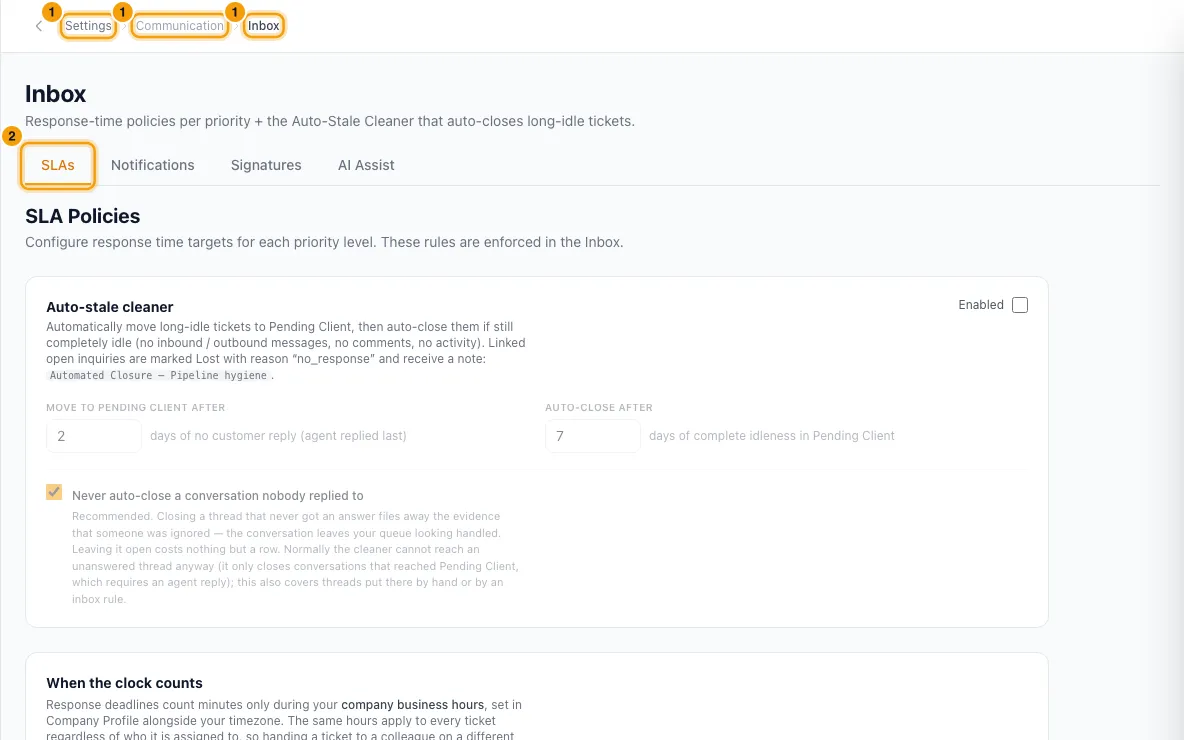
On the SLAs tab, each priority (Low, Normal, High, Urgent) has its own card. Type the minutes for First Response, Resolution and Assignment, and for Follow-up Response — subsequent guest replies (leave it blank to turn it off). Each field saves when you click out of it.
On each card, under Escalation Rules, tick Notify on SLA breach to get an alert when that priority misses a target, and use Policy active to switch that priority's targets on or off.
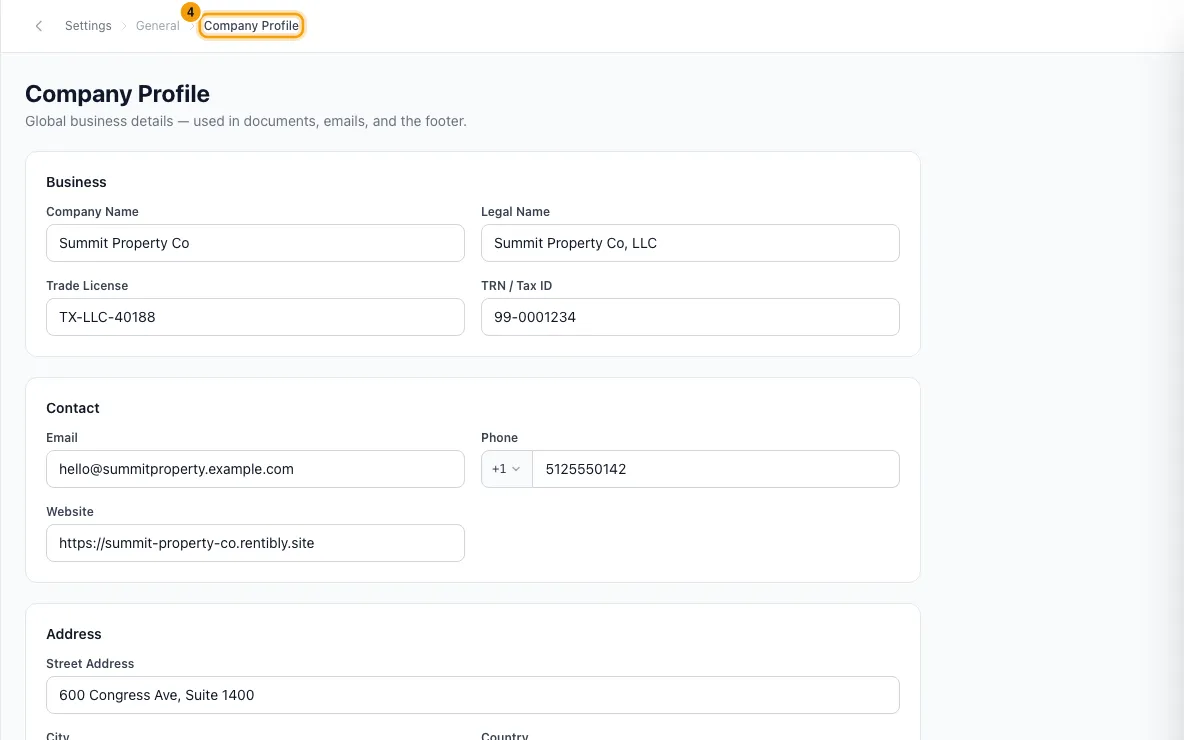
Under When the clock counts, click Set business hours to set your company hours in Company Profile. If none are set, the card says SLA deadlines run around the clock.
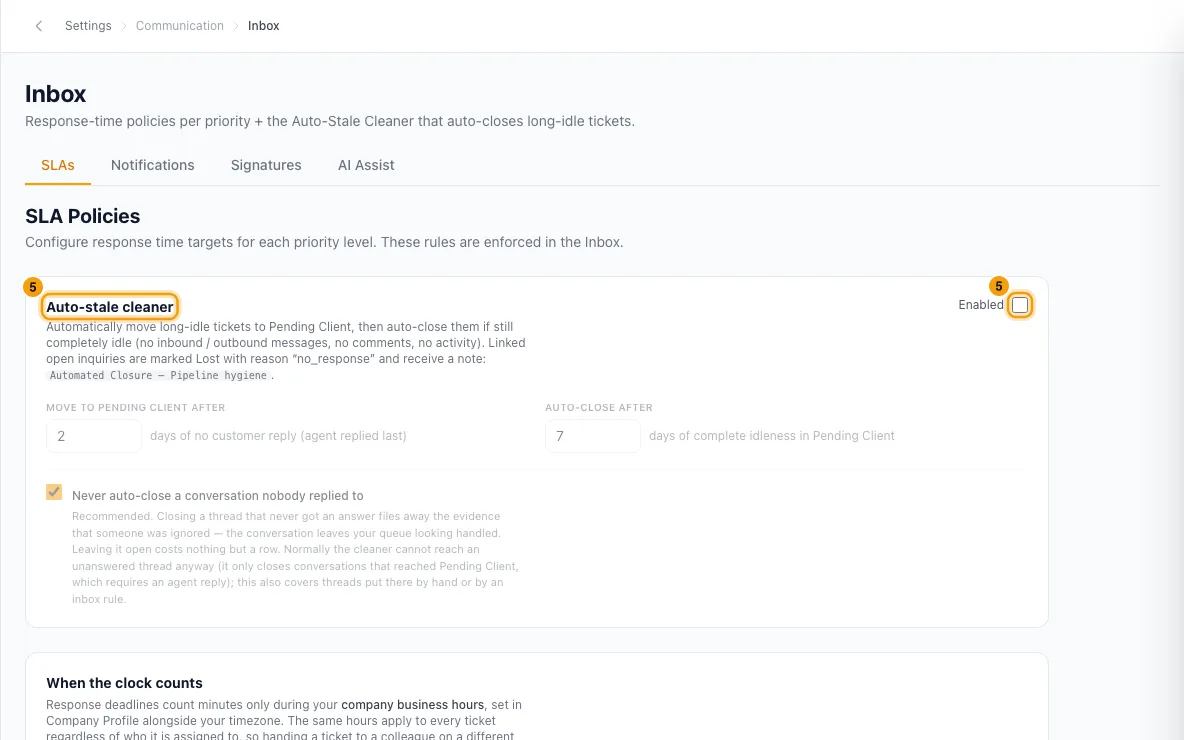
Under Auto-stale cleaner, tick Enabled, then type the days for Move to Pending Client after and Auto-close after. Each saves when you click out of it or press Enter. Keep Never auto-close a conversation nobody replied to ticked.
Open the Notifications tab. Each row is one Inbox event. Use the switch on the right to turn it on or off, and click In-app, Push, Email or WhatsApp to choose how it's sent.
When you turn on Email or WhatsApp for a row, pick the template to send. Use Change email template or Change WhatsApp template to swap it later.
To choose who gets a row's alert, click Edit next to Recipients, use + Add recipient and + Add exclusion, then click Save.
Good to know
- What starts the clock: every new conversation gets its Assignment, First Response and Resolution deadlines from the Normal card when it arrives, because new conversations start at Normal priority. This covers email, WhatsApp, Bayut and Property Finder leads, the Owner Portal, the guest portal, website chat, Airbnb, Booking.com and the other channels, and a conversation you start. Conversations already in the Inbox before these deadlines were added (October 2026) keep only the deadline they had.
- Changing the priority recalculates all three from that priority's card: First Response from the moment you change it, Assignment and Resolution from when the conversation arrived. Assigning it to someone doesn't move any deadline.
- Business hours: all SLA deadlines only count minutes inside your company business hours, in your company timezone. With no business hours set, they count around the clock.
- Follow-up Response starts only after your first reply: it applies when the guest writes again and is waiting for your answer. Every guest message restarts it. A conversation nobody has answered yet is covered by First Response only.
- Assignment is met as soon as the conversation is assigned to someone. Resolution is met when it is closed or resolved. A blank or 0 Assignment or Resolution target means that priority has none.
- A reply the host writes in the channel's own app (for example Airbnb) counts as the first response once it syncs to the Inbox. The channel's automatic notices don't.
- When a target is missed: the conversation shows a red SLA chip in the list (hover it to see which deadline), and it appears on the Inbox SLA tab. A missed First Response adds the
sla_breachedtag and sends the First-response SLA breach alert. A missed Follow-up Response adds thefollow_up_sla_breachedtag and sends the Follow-up SLA breach alert, once for each guest message left unanswered. A missed Resolution sends the Resolution SLA breach alert once. A missed Assignment shows the chip and the SLA tab only; it has no alert. - Notify on SLA breach is on by default. Turn it off on a priority's card and missed targets for that priority are still flagged and tagged, but nobody is alerted. When it's on, the matching row on the Notifications tab decides who gets the alert and how.
- Priority is never raised automatically when a target is missed.
- On Hold doesn't pause the clock: an On Hold conversation can still miss its target. Only closed or resolved conversations stop counting.
- Auto-stale cleaner: a conversation where your team replied last and the guest has been quiet for the set days moves to Pending Client. If it then stays completely idle (no messages, notes or activity) for the auto-close days, it closes, and the sender's open inquiries are marked Lost with the reason "no response" (not ones that already became a booking). Each one marked Lost runs your Inquiry lost notification rules. Defaults: on, 2 days, 7 days. The Ticket auto-closed row on the Notifications tab tells the assigned person.
- Who gets In-app and Push alerts is fixed: the assigned person, or, when no one is assigned, everyone with the Inbox permission (for new conversations and breaches). Reply received goes only to the assigned person. The Recipients you set decide who gets the Email and WhatsApp versions.
- Turning a row's switch off stops that alert on every channel and keeps its channels, so switching it back on sends the same way. A row marked Default hasn't been saved yet and is sent on In-app and Push. A row can't be switched on with no channels: it would notify nobody.
- When four or more conversations miss a target at the same moment, each person gets one summary push instead of one per conversation.
- Inbox alerts push to the Inbox app. The three mention alerts (@mention in internal note, Reply on a note thread and Customer reply on thread I was mentioned in) also push to the Hub in the browser, and they still come through Do not disturb unless the person turned off Let @mentions ring through.
- Signatures tab: email signatures per inbox account. See Connect an email account and set signatures.
- AI Assist tab: explains the Rentibly AI button on each conversation and links to Open AI Assistant settings. Each conversation also has a Rentibly AI Assist switch on its Ticket tab to stop AI suggestions there.
- Auto-stale days must be whole numbers from 1 to 365. Anything else shows an error under the box and is not saved. If a save fails, the page says Not saved and shows what is actually saved.
- You need the Settings permission to change these.
Rentibly AI can help
- It can't change SLA targets or notification settings. It can find conversations that missed their first-response target by searching for the
sla_breachedtag.
Still stuck?
Open Support from your profile menu in Rentibly, or email hello@rentibly.com — we answer fast.