Assign and handle conversations in the Inbox
Updated 13 October 2026
Every guest conversation in the Inbox is a ticket. Give each one an owner, a status and a priority, and use internal notes, pins and flags so nothing gets missed.
Steps
Click Inbox in the sidebar.
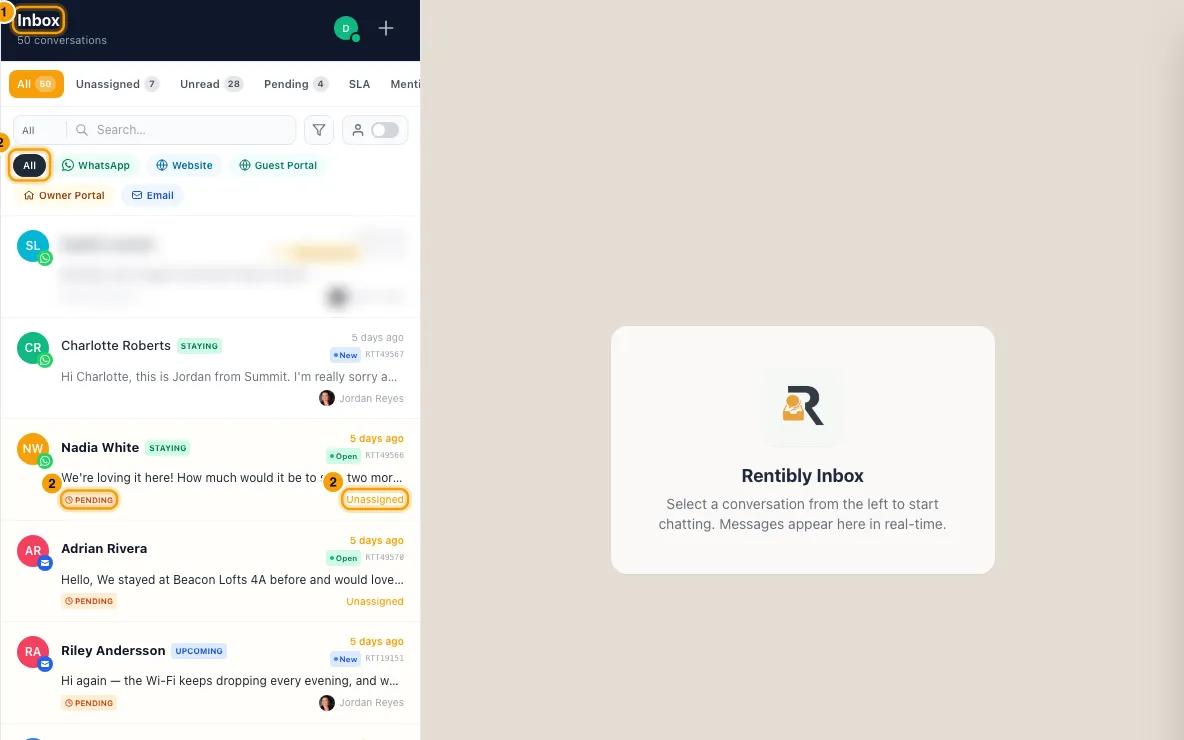
Use the tabs at the top of the list to find conversations: All, Unassigned, Unread, Pending, SLA, Mentioned and Closed.
To see only conversations assigned to you, turn on the switch with the person icon next to the search box. It reads Show my tickets only when off and Showing your tickets when on. To see one teammate's conversations instead, click the filter button (the funnel icon) next to the search box, choose By Agent, and pick the teammate. To clear it, choose All agents or click the selected teammate again.
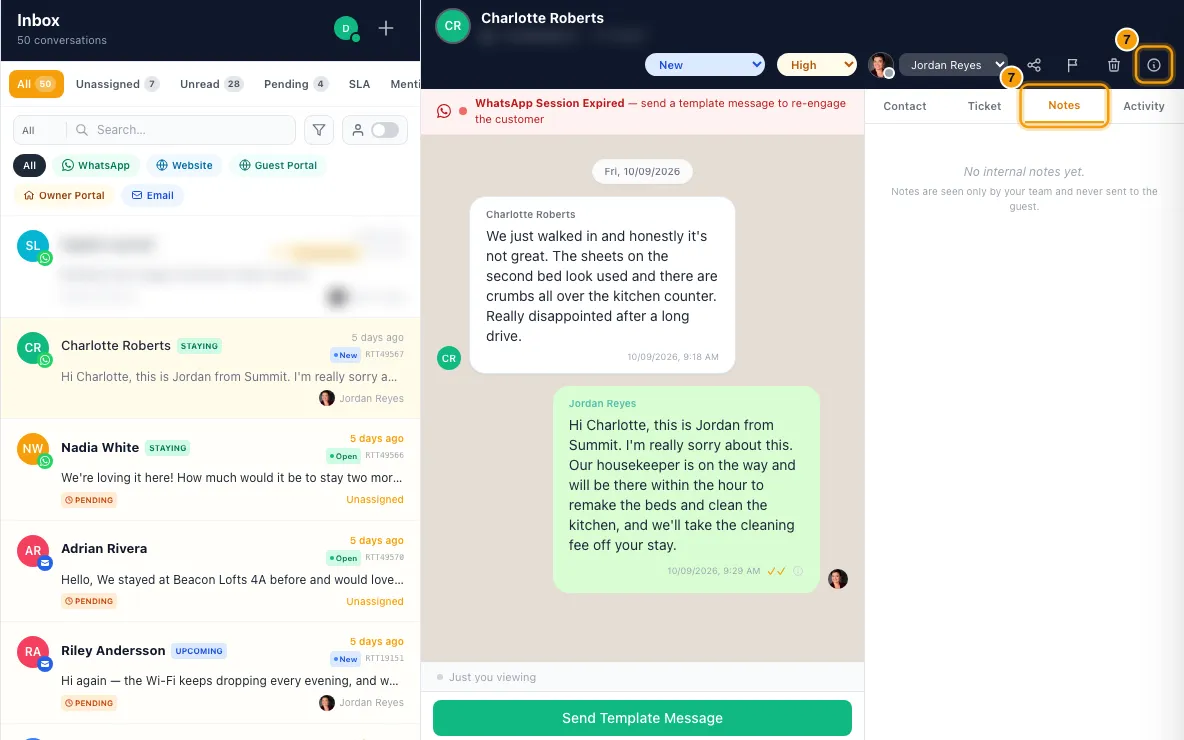
Open a conversation. In its header, pick a teammate in the agent menu (it shows Unassigned when no one has it). You can also use Assigned to on the Ticket tab of the details pane.
In the header, set the status (New, Open, Pending Agent, Pending Client, On Hold, Closed) and the priority (Low, Normal, High, Urgent). Choosing Closed opens the Close Ticket window instead. See Close finished conversations and update their inquiries.
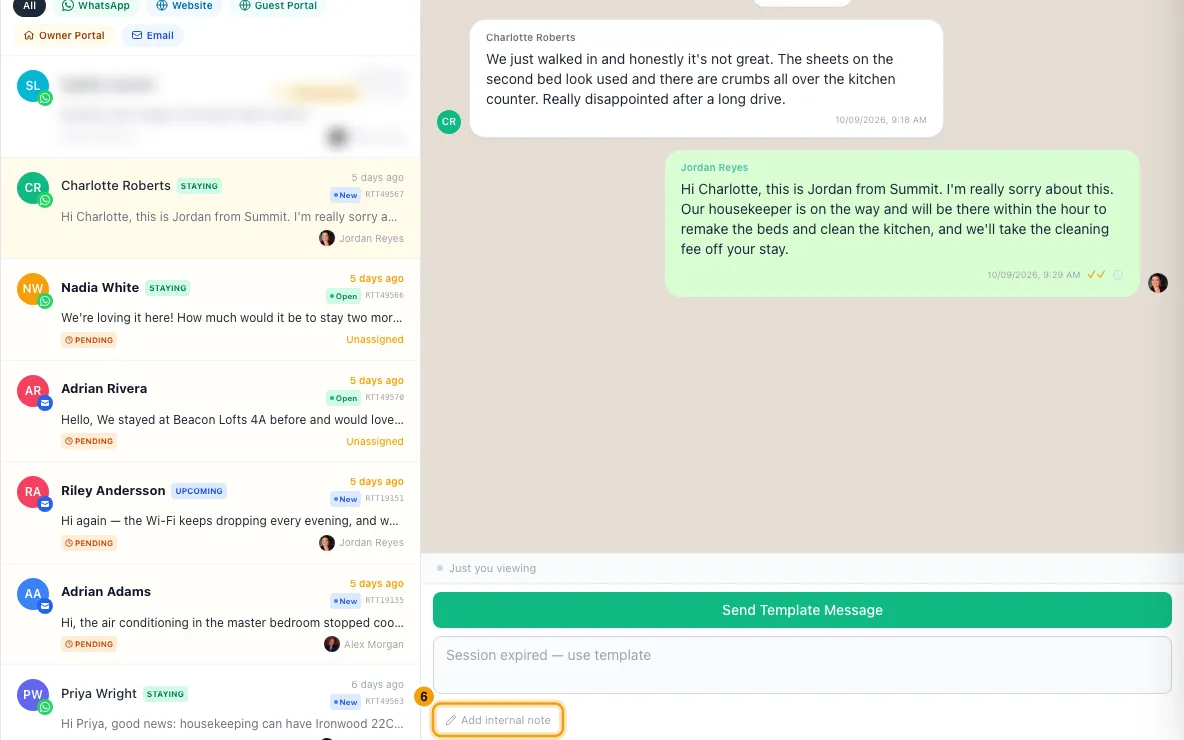
To brief a colleague, click Note (email conversations) or Add internal note (every other channel) under the message box. Type @ and pick a teammate to mention them, then click Add Note or press Enter.
To see every note on the conversation, click Details (the "i" icon) in the header and open the Notes tab. Click Show in conversation to jump to a note in the thread.
To keep something in view for the whole team, pin it. Open the message's menu (the arrow on the message) and click Pin message, or click the pin icon on a note or an email. Pinned messages show at the top of the conversation. Click one to jump to it, or open the list with the arrow to Unpin it.
To mark a conversation to come back to, click the flag icon in the header. To list only your flagged conversations, open the filter button (the funnel icon) and tick Flagged.
Good to know
- Pending lists conversations where the guest wrote last and no one on your team has replied yet.
- The SLA tab lists open conversations that are past a response-time target. See Set response-time targets (SLAs) and inbox alerts.
- Mentions: the person you @mention in a note gets "Name mentioned you on ticket number". Their alert opens the conversation on the Mentioned tab, under New, In Progress or Resolved (whichever holds the mention), and highlights the note. See "Mention a teammate in a note or comment".
- Assigning a conversation that is still New moves it to Open. The person you assign gets a notification, unless you assigned it to yourself. Which channels they get it on is set under Settings → Inbox → Notifications (Ticket assigned to me).
- Assigning doesn't change any response deadline. The deadline is set when the conversation arrives and changes only when you change its priority.
- When you send a reply on an unassigned conversation, it is assigned to you. A reply that goes out also sets the status to Pending Client.
- Replying also moves the guest's New booking inquiries to Contacted. Assigning or replying can also assign the guest's booking inquiries, depending on Settings → Users & Access → Inquiry Routing. See "Choose who owns a booking inquiry".
- To hand a conversation back, pick Unassigned in the header's agent menu or in Assigned to on the Ticket tab. It moves to the Unassigned tab for everyone and keeps its status. No one is notified, the guest's booking inquiries keep their owner, and the Activity tab records it as Reassigned → Unassigned.
- The Contact tab of the details pane lists the guest's bookings, inquiries and quotes. Each one shows where it came from (for example Airbnb or Direct), with the name and colour set under Settings → Data Management → Reference Lists → Sources. A record with no source shows none. See "Manage sources and lost reasons".
- If the person has no inquiries or bookings yet, the Contact tab shows + Create Inquiry. Click it and choose Booking Inquiry or Owner Inquiry; the matching form opens on the Inquiries page with their name and phone filled in.
- Internal notes are never sent to the guest. Only the person who wrote a note can delete it: click the bin icon on the note, or Delete on the Notes tab.
- Only the teammates you pick from the @ list are notified. If you delete their name from the note before saving, they aren't.
- A conversation can have up to three pinned messages, and everyone who can open the conversation sees them. Unpin one before pinning another.
- Flags are private. Only you see your flags, and each teammate has their own.
- While you search, or filter by an account, the list shows what matched when you searched. Conversations already in the results still update as messages arrive, but other conversations don't pop in. To pick up a new match, run the search again (on a phone you can also pull the list down to refresh).
- By Agent and Show my tickets only both filter by who owns the conversation, so turning one on turns the other off. The counts on the tabs follow whichever is on. By Agent lists active teammates only, and works with the other filters and every tab (on Unassigned it shows nothing, because those conversations have no owner).
- On small screens, the status, priority and agent menus in the header are hidden. Use the Ticket tab instead.
- On an email or WhatsApp account, the Team assignment setting limits who can see that account's conversations.
- You need the Inbox permission to work conversations. Deleting a conversation (the bin icon in the header) moves it to Trash for 30 days. Deleting a website chat also ends the visitor's chat: their next message starts a new conversation.
Rentibly AI can help
- It can assign, reassign or unassign a conversation and change its priority or status, tag it, or turn a message into a follow-up task.
- It can close many finished conversations at once and mark their inquiries lost. See Close finished conversations and update their inquiries.
- It can scan many conversations at once and close the marketing emails and newsletters as spam. See Clean spam, marketing and newsletters out of the Inbox.
Still stuck?
Open Support from your profile menu in Rentibly, or email hello@rentibly.com — we answer fast.