Top up WhatsApp credit
Updated 12 October 2026
WhatsApp messages are paid from your prepaid Rentibly WhatsApp credit. Add credit by card, or set up auto-topup so it refills itself before it runs out.
Steps
Click your name at the bottom of the sidebar, then Settings. Under Communication, open WhatsApp Business. The Rentibly WhatsApp credit card shows your balance.
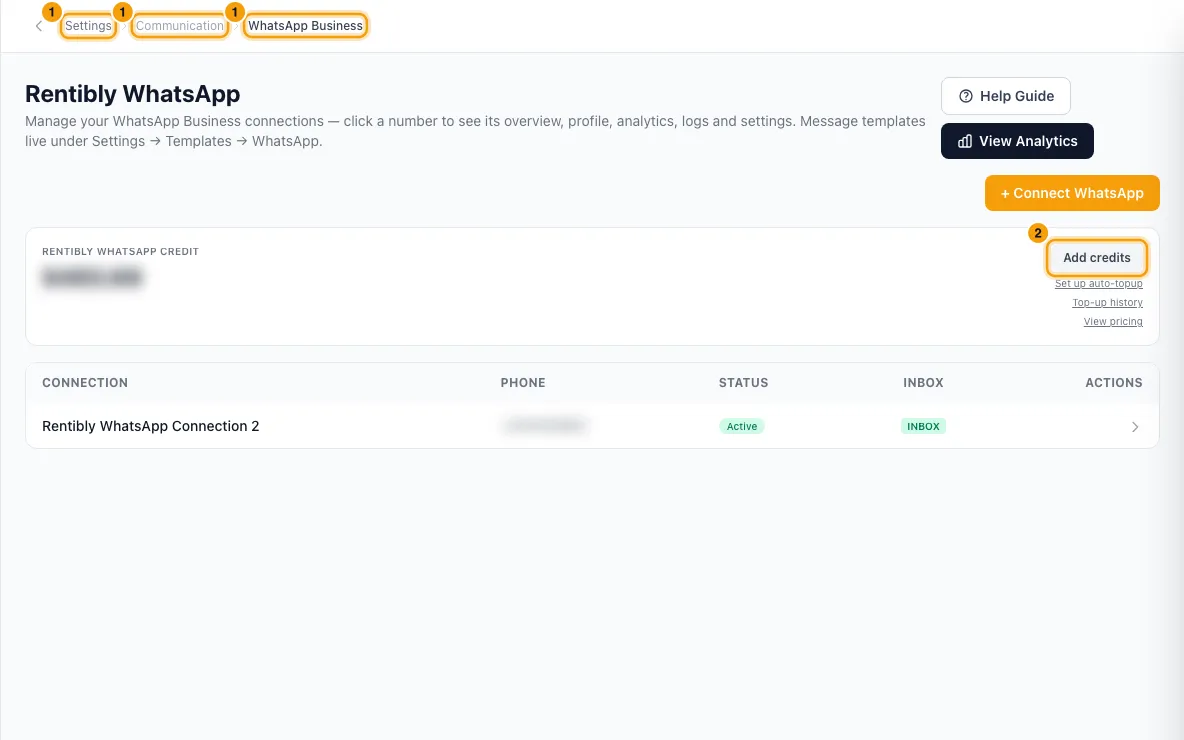
Click Add credits.
Pick an amount ($20, $50, $100, $250 or $500) or type your own. Check the summary: WhatsApp credit, Processing fee, Total charged to your card and New balance after top-up.
Pick a saved card or Use another card, then click Continue (or Continue to payment).
Enter the card details if asked, then click Pay. The new balance appears within a few seconds.
To refill automatically, click Set up auto-topup on the card. Choose a Low-balance alert threshold, tick Enable auto-topup and choose the Top-up amount per refill.
Pick the card to charge and click Enable auto-topup (or Continue to add card to add a new one).
To see past top-ups, click Top-up history. To see prices and estimate costs, click View pricing.
Good to know
- The card appears once you have a connected WhatsApp number. It is also on WhatsApp Analytics when All numbers is selected.
- Amounts: at least $10 and at most $10,000 per top-up, in US dollars. A processing fee is added on top; the dialog shows it before you pay.
- Low balance: when the balance drops below your threshold ($5 unless you change it), the card turns amber and the account owner plus active users with the admin or manager role get a WhatsApp credit running low notification in the bell, at most once a day (one each, even if the owner is also an admin). To change only the threshold, untick Enable auto-topup and click Save threshold.
- Auto-topup is checked every 5 minutes. When the balance is at or below the threshold, it charges your card for the refill amount. The refill amount must be more than the threshold. If the card is declined, auto-topup turns itself off and the same people (account owner, admins and managers) get a WhatsApp auto-topup failed notification. Set it up again with a working card.
- To stop auto-topup, open Auto-topup settings, click Disable auto-topup, then Confirm: disable auto-topup.
- When credit runs out, the wallet is suspended and WhatsApp messages stop sending, including automated ones. The card and the Inbox show a red banner. Adding credit resumes sending automatically. If it doesn't, click Resume sending on the card.
- You need the Settings permission set to Access to add credit, change auto-topup or resume sending.
Rentibly AI can help
- Rentibly AI can't top up credit or change auto-topup. It can explain these steps.
Still stuck?
Open Support from your profile menu in Rentibly, or email hello@rentibly.com — we answer fast.