Reply to a guest from the Inbox
Updated 13 October 2026
Every conversation has a message box at the bottom. What it offers depends on the channel: email gets a full email editor, while WhatsApp, Airbnb, Booking.com, Vrbo and the website and portal chats get a chat box.
Steps
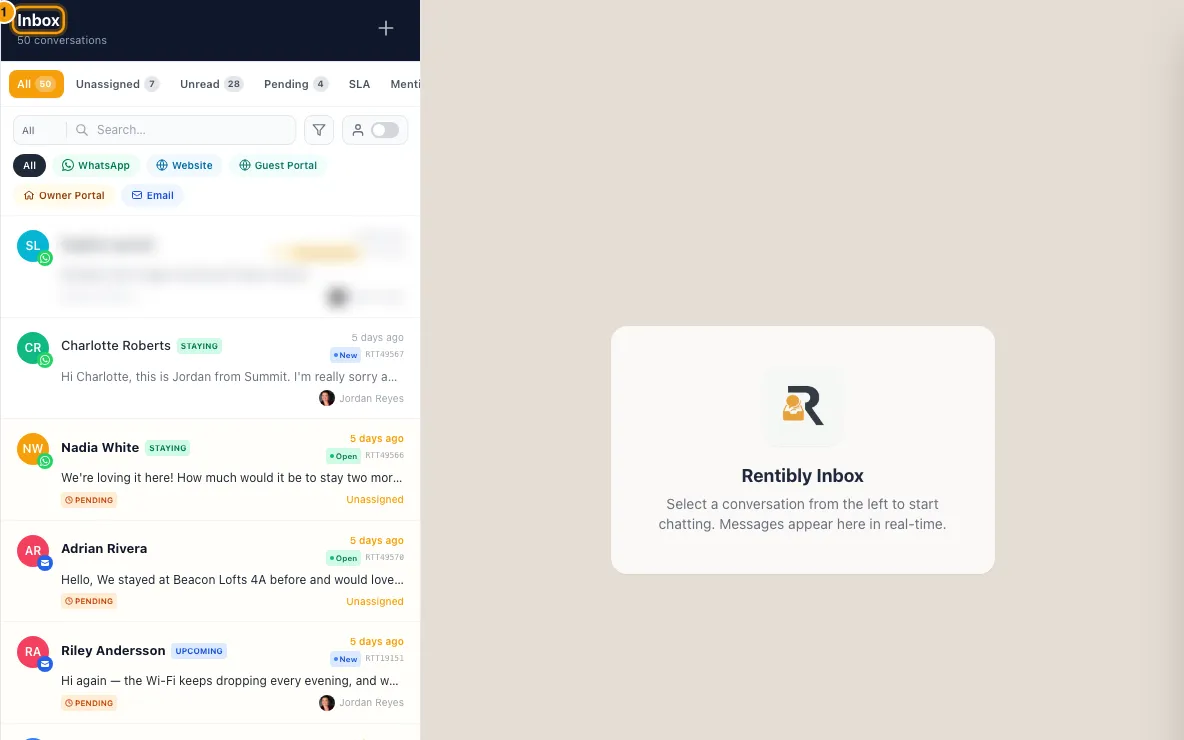
Click Inbox in the sidebar and open the conversation.
Type your reply in the box at the bottom.
- Email: pick the sending address in From, then write in the editor. If the email account has a default signature, a new reply already contains it. To add another, click Insert in the editor toolbar and pick one.
- Everything else: to answer one particular message, hover it and click Reply. It shows above the box; click the cross to drop it.
Add anything extra you need (see the list below).
Send it. On email, click Send Email. Everywhere else, click Send. Ctrl+Enter (Cmd+Enter on a Mac) also sends.
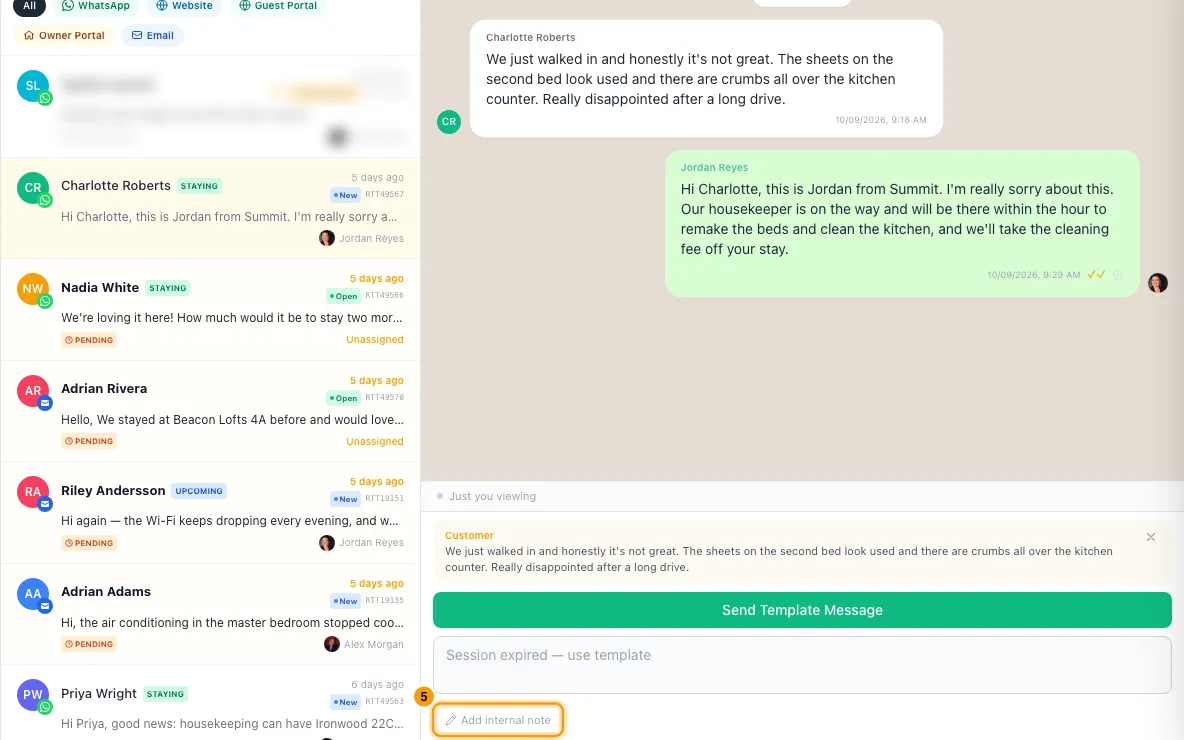
To leave a message for your team instead, click Note (email) or Add internal note (other channels). Notes are never sent to the guest.
What you can add
- Attachments (email): click the paperclip (Attach file) in the editor toolbar. Up to 10 files, 25 MB each.
- Guest documents (email): click Guest docs and tick the guest's stored documents, such as check-in ID scans. Only shows when the conversation has a contact.
- Attachments (WhatsApp): click Attach and choose Photo (JPG, PNG, WebP, up to 5 MB), Video (MP4, 3GPP, 16 MB), Audio (OGG, MP3, AMR, AAC, 16 MB) or Document (PDF, Word, Excel, PowerPoint, CSV or TXT, 100 MB). Add an optional caption to each.
- Attachments (Airbnb, Booking.com, Vrbo): click the paperclip. Up to 5 MB each. Airbnb takes PNG, JPG or GIF; Booking.com PNG or JPG; Vrbo images or PDF.
- Attachments (Owner Portal and website chat): click the paperclip. Website chat attachments must be turned on for that chat.
- Edit a photo first: click the pencil on a staged image to crop or mark it up.
- Voice message: on WhatsApp click Record voice; on the guest and owner portal chats, click the microphone. Click Stop, play it back, then Send or discard it. Portal voice messages stop at 2 minutes.
- Template (WhatsApp): click Template, pick an approved template, fill in its variables and click Send Template.
- Snippets: click Snippets or type
/in the box, then pick one. See below. - Formatting (chat box): bold, italic, strikethrough, monospace, lists and emoji from the toolbar.
WhatsApp after 24 hours
WhatsApp only allows free text within 24 hours of the guest's last message. The banner above the conversation shows WhatsApp Session Active and the time left, or WhatsApp Session Expired. When it has expired, the box is locked. Click Send Template Message, pick a template, fill in the variables and click Send Template. When the guest replies, the box opens again.
Translate before sending (chat box)
- Click the translate icon in the toolbar. If the conversation has no guest language yet, pick one and click Save + arm translate.
- Type your reply in your own language and click Translate + send.
- In Review translation before sending, check or edit either side. Click Retranslate after editing your draft.
- Click Send translated. The guest gets the translation; your original stays on the message for your team.
The guest's language, the language incoming messages are translated to, and Auto-translate incoming are under Translation on the Ticket tab of the details pane. They apply to this conversation only.
Snippets (saved replies)
- Click Snippets in the chat box toolbar, or type
/followed by a shortcut. - Pick a snippet. Use the arrow keys and Enter, or click it. The guest's and booking's details are filled in for you.
- To save the reply you just typed, click + Save as snippet. To start a new one, click + New snippet. To edit or delete any of yours, click Manage all.
- In the snippet window, fill in Title, Body, Visibility (Private — only me or Shared — everyone in the tenant), Channel filter and an optional Shortcut. Click Create snippet or Save changes.
Good to know
- Blanks must be filled. Anything still in double curly braces, like
{{door code}}or a detail this conversation has no data for, is a blank. The box lists the blanks and won't send until each one is replaced. Click a blank in the list to select it. - Email replies go to the addresses in To, which starts with the guest's address. Click CC/BCC to copy others in. Separate several addresses with commas, and change the Subject if you like (it starts as "Re:" and the conversation's subject). If an address isn't a valid email, the reply isn't sent: a message names it and your text stays in the box.
- From (email): lists your team's sending addresses, set under Settings → Email → Senders. "Send as me" (your own address, with replies going to a team inbox) is only offered when you start a new email conversation, not on replies.
- Signatures are set per email account under Settings → Email → Inbox Signatures or Settings → Inbox → Signatures. See Connect an email account and set signatures. The account's default signature is added to an empty email reply by itself, once per reply; a saved draft is left as it is. Any other signature is added only when you insert it. The Insert menu lists the signatures of the email account the conversation came in on (shown as "via" above the box).
- Snippets in an email reply: click Snippets in the email editor's toolbar and pick one; it is added where your cursor is. Typing
/, + New snippet and Manage all are in the chat box only. The picker lists snippets for this conversation's channel; Manage all shows every channel. Anyone can create snippets. Only the author can edit or delete a snippet, except that people with full access can edit or delete shared ones. - Insert payment link is not in the reply box. It shows in the New Conversation window when you send a booking's new payment link as a WhatsApp template: click it next to the template variable that should carry the link. See Send a payment link or charge a saved card.
- WhatsApp templates: only templates approved by Meta, active, and with Template Type set to Inbox show in the list. See Manage message templates (email, WhatsApp and channel).
- Attachments on WhatsApp and the OTA channels each go as a separate message. Text you type goes first, as its own message. Up to 5 files per send. On WhatsApp, you can click Cancel while the files are still uploading; once the upload finishes, sending can't be stopped.
- Airbnb blocks links until a booking is confirmed. The box warns you while you type; a reply with a link on an inquiry thread won't be delivered.
- Videos from Airbnb guests don't reach Rentibly — Airbnb passes on photos but not videos. In their place the conversation shows a note saying the guest sent something you can only see on Airbnb; open the conversation on Airbnb to watch it.
- Replies go out on the same account the guest wrote to, shown as "via" above the box. To use a different number or address, start a new conversation.
- If the WhatsApp number was disconnected, the conversation is read-only. Click Start new conversation → to reach the guest from another number.
- Sending a reply sets the conversation to Pending Client, stops the first-response clock, and assigns the conversation to you if no one had it.
- It also moves the guest's New booking inquiries to Contacted, which runs your notification rules for stage changes like a move you make on the inquiry. By default, those that nobody owns are assigned to you. See "Choose who owns a booking inquiry".
- Drafts are saved in your browser as you type, per conversation. Attachments are not kept in drafts.
- Reservations Agent drafts: when the Reservations Agent drafts an answer, it shows under the guest's message, marked "draft — not sent". Click Use this reply to put it in the box (on an email conversation, at the top of the email editor, above your signature), edit it, and send it yourself. If you had already typed something, your text is kept below the draft. Click Dismiss to throw it away.
- Rentibly AI button: opens Rentibly AI for this conversation, to help draft, summarise or look things up.
- You need the Inbox permission to send. If you're not on the Team assignment list of the account the conversation came in on, you can't send on it.
Rentibly AI can help
- It can check a conversation's channel rules first, such as whether the WhatsApp 24-hour window is open and which templates fit.
- It can send a reply it drafted on WhatsApp, Airbnb, Booking.com or Vrbo once you approve it, including a WhatsApp template when the window is closed. It can't send email replies yet.
Still stuck?
Open Support from your profile menu in Rentibly, or email hello@rentibly.com — we answer fast.