Close finished conversations and update their inquiries
Updated 13 October 2026
When a conversation is done, close it and settle the sender's open inquiries and quotes at the same time: keep them open, move them on, mark them lost, or expire the quote.
Steps
Click Inbox in the sidebar and open the conversation.
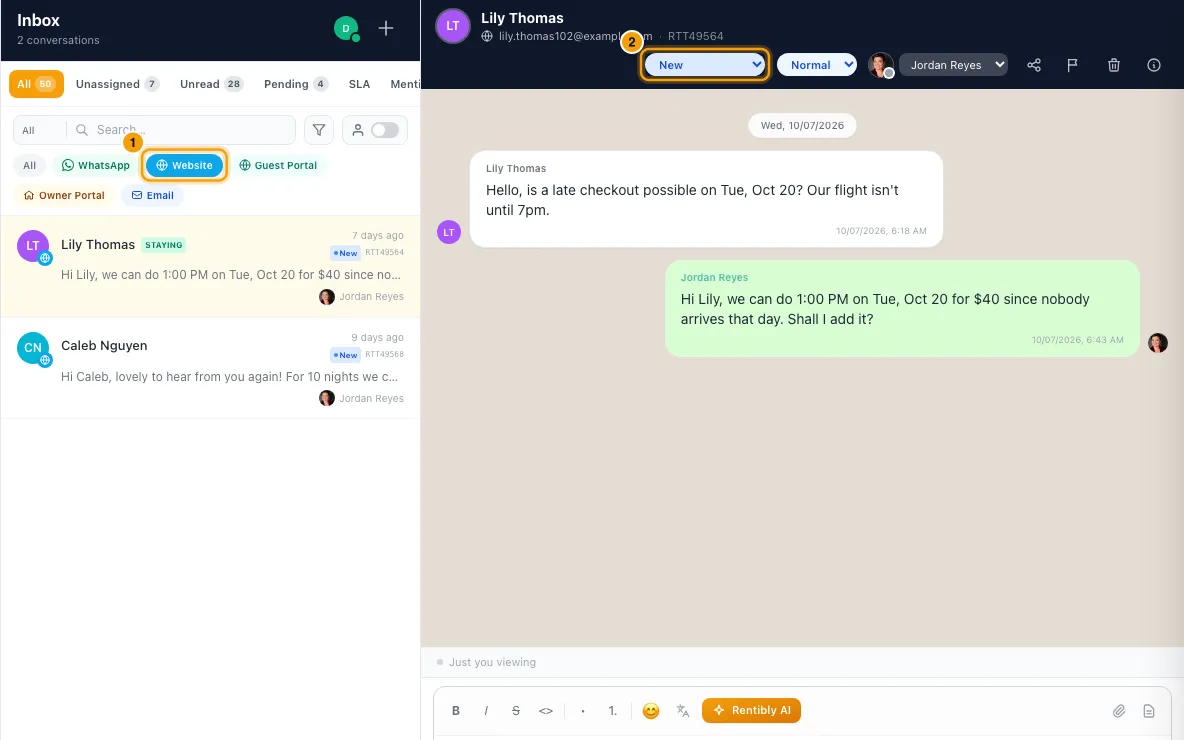
Set its status to Closed in the conversation header (or on the Ticket tab of the details pane). The Close Ticket window opens.
Choose what the conversation was about: Inquiry, Booking, Owner or Other. For Inquiry or Booking, you can also pick the one it belongs to from the list.
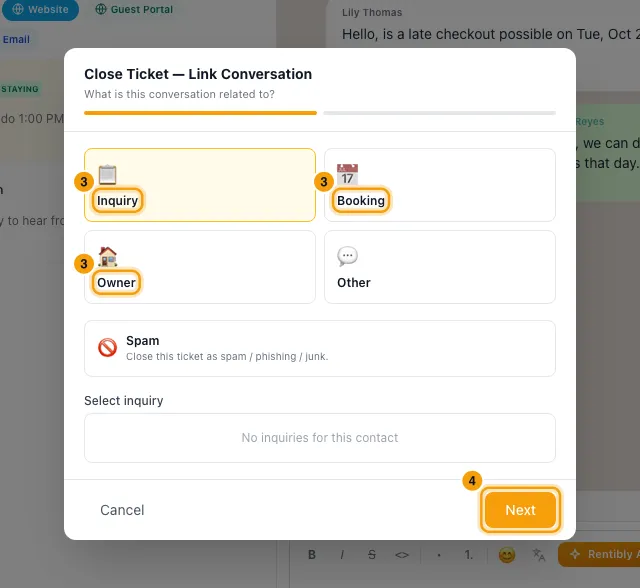
Click Next.
For each open inquiry, choose Still active, Move to a later stage, No response, Mark as Lost or Spam / junk. Mark as Lost needs a Reason and a Note.
For each open quote, choose Keep as-is, Move to a later status, or Mark as Expired.
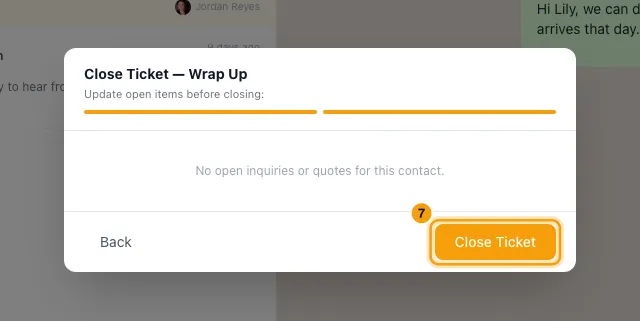
Click Update & Close Ticket, or Close Ticket when the sender has nothing open.
With Rentibly AI, for many at once
- Ask Rentibly AI, for example: "Close every conversation with no messages since 1 September and mark their inquiries lost — no response."
- It finds the conversations and shows one card. The card states which conversations it picked, for example "status pending client, no message since 2026-09-05", so check the date. For each conversation the card lists its open inquiries and quotes and what will happen to each, and flags any conversation still waiting for your reply.
- Check the card and click Confirm.
Good to know
- Closing sends nothing to the guest. Closed conversations stay under Closed and can be reopened by changing their status.
- The window lists the sender's open inquiries and up to 10 open quotes (draft, sent or viewed). A conversation with no linked contact has none to update.
- No response marks the inquiry Lost with the reason "no response". Spam / junk moves it to Junk. Each change also adds a note to the inquiry.
- No response and Mark as Lost run your Inquiry lost notification rules (for an owner inquiry, Owner inquiry lost), once per inquiry. Spam / junk does not.
- If you mark an inquiry Spam / junk, you can also tick Mark contact … as spam. That marks the contact spam and "do not contact" and blocks the sender on email or WhatsApp.
- To close junk itself, choose Spam in step 3 instead. See Clean spam, marketing and newsletters out of the Inbox.
- Lost reasons come from your lost-reasons list.
- In the Close Ticket window you only need the Inbox permission. Rentibly AI also checks that you have Inquiries set to Edit before changing inquiries, and Quotes set to Edit before expiring quotes.
- To mark inquiries lost, Rentibly AI needs a reason. If you don't give one, it asks. If your wording doesn't match a reason on your list, it uses Other and keeps your wording as the note.
- One Rentibly AI card closes up to 50 conversations you name, or up to 150 that match a description, oldest first. If more match, it says how many are left and you can ask for another card. It only closes conversations your Inbox shows you.
- A confirmed card has already run and can't be changed. To do more, for example also expire quotes, ask again for a new card.
Rentibly AI can help
- It can find stale or finished conversations and close them with their inquiries and quotes settled.
Still stuck?
Open Support from your profile menu in Rentibly, or email hello@rentibly.com — we answer fast.